If you are searching for a PCSX2 Lag Fix, you are not alone. Thousands of users face lag, stuttering, low FPS, audio crackling, and slow gameplay when running PlayStation 2 games on PC using the PCSX2 emulator. Even users with decent or high-end PCs often experience lag because PCSX2 is very sensitive to settings, CPU power, and emulator configuration.
The good news is that PCSX2 lag is fixable in most cases. You do not always need a new PC or expensive hardware. With the right PCSX2 settings, correct graphics options, proper speedhacks, and a few Windows optimizations, you can significantly reduce lag and enjoy smooth PS2 gameplay.
In this PCSX2 Lag Fix guide, I will explain everything in detail — from why lag happens, to step-by-step fixes for low-end and high-end PCs. This article is written in simple language, so beginners can follow it easily, while also covering advanced tweaks for experienced users.
What This PCSX2 Lag Fix Guide Covers
In this article, you will learn:
-
What PCSX2 lag actually means
-
Why PCSX2 games lag on PC
-
Hardware requirements for smooth gameplay
-
Best PCSX2 basic settings to reduce lag
-
Graphics settings that affect FPS the most
-
Speedhacks explained (what to use and what to avoid)
-
PCSX2 lag fix for low-end PCs
-
PCSX2 lag fix for high-end PCs
-
Audio stuttering and sound lag fixes
-
Windows optimizations for PCSX2
-
Common mistakes that cause lag
-
FAQs related to PCSX2 lag problems
What Is PCSX2 Lag and Why Does It Happen?
PCSX2 lag does not mean just “slow gameplay.” Lag can appear in different forms, and understanding them helps you fix the problem correctly.
Types of Lag in PCSX2
-
Low FPS: The game runs slower than normal speed
-
Stuttering: Sudden drops in FPS
-
Audio crackling: Sound breaks or delays
-
Input lag: Controller or keyboard responds slowly
-
Slow motion gameplay: Game feels like it’s running in slow speed
PCSX2 emulates PlayStation 2 hardware at a very low level. This means it recreates the PS2 CPU, GPU, memory, and system behavior in software, which is extremely demanding on your PC’s processor.
PCSX2 depends more on CPU than GPU, which is why lag often happens even if you have a good graphics card.
Also Read:- PCSX2 Black Screen Problem
Common Reasons for PCSX2 Lag
Understanding the cause is the first step in applying the correct PCSX2 lag fix.
Weak or Low-End CPU
PCSX2 needs:
-
Strong single-core performance
-
High clock speed
Older dual-core CPUs or low-power laptop processors struggle the most.
Incorrect Emulator Settings
Many users increase graphics settings thinking it improves performance. In reality:
-
High internal resolution = more GPU load
-
Unsafe speedhacks = instability
-
Wrong renderer = FPS drops
Using an Old PCSX2 Version
Older stable versions are:
-
Less optimized
-
Slower
-
Missing performance improvements
Newer nightly builds are usually faster and more efficient.
Game-Specific Emulation Difficulty
Not all PS2 games are equal:
-
Some games are light and easy to emulate
-
Others are very demanding and require special tweaks
Minimum & Recommended PC Requirements for PCSX2
Minimum Requirements (Lag Likely)
-
CPU: Dual-core processor
-
GPU: Integrated graphics
-
RAM: 4 GB
-
OS: Windows 10
Expect lag in many games.
Recommended Requirements (Smooth Gameplay)
-
CPU: Quad-core with strong single-core speed
-
GPU: Dedicated GPU or strong iGPU
-
RAM: 8 GB or more
-
OS: Windows 10 / 11
-
Storage: SSD (recommended)
An SSD does not increase FPS but helps with loading times and stutter reduction.
PCSX2 Lag Fix – Best Basic Settings (Must Do First)
Before touching advanced settings, configure the basics correctly.
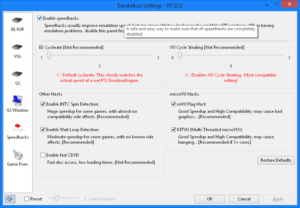
Step 1: Use the Correct Preset
-
Open PCSX2
-
Go to Config → Emulation Settings
-
Select Balanced preset
This preset gives a good balance between speed and accuracy.
Step 2: EE and VU Settings Explained
-
EE (Emotion Engine): Main PS2 CPU
-
VU (Vector Units): Handles physics & graphics calculations
Wrong EE/VU settings can cause heavy lag or crashes.
Default values are best for most users.
Best Graphics Settings for PCSX2 Lag Fix
Graphics settings have the biggest impact on performance.
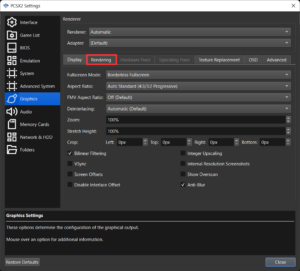
Renderer Selection (Very Important)
-
Low-end PC: OpenGL or DirectX 11
-
Mid-range PC: DirectX 11 / Vulkan
-
High-end PC: Vulkan or DirectX 12
Vulkan usually gives better performance, but it depends on your GPU drivers.
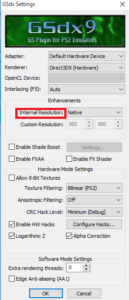
Internal Resolution (Big FPS Impact)
-
Native (1x): Best performance
-
2x – 3x: Better visuals, more GPU load
-
4x+: Heavy FPS drop on many systems
For PCSX2 lag fix, always start with Native resolution.
Texture Filtering & Enhancements
Disable the following if you face lag:
-
Anisotropic Filtering
-
FXAA
-
Texture blending
-
Extra shader effects
These settings improve visuals but reduce FPS.
Speedhacks Explained – Use Them Correctly
Speedhacks are powerful but dangerous if misused.
What Are Speedhacks?
Speedhacks reduce emulation accuracy to improve performance.
Recommended Speedhack Settings
-
Enable MTVU (Multi-Threaded VU1)
-
EE Cyclerate: 1 (default)
-
VU Cycle Stealing: 0 or 1
Do NOT push values higher unless a game specifically needs it.
Why Too Many Speedhacks Cause Lag
-
Visual glitches
-
Audio desync
-
Game crashes
Speedhacks should be used minimally.
Also Read:- PCSX2 BIOS Not Detected
PCSX2 Lag Fix for Low-End PC (Very Important Section)
If you have:
-
Dual-core CPU
-
Integrated graphics
-
4–8 GB RAM
Use these settings:
-
Renderer: OpenGL
-
Internal Resolution: Native
-
MTVU: Enabled
-
Disable all enhancements
-
Close background apps
These settings give the best PCSX2 lag fix for low-end PCs.
PCSX2 Lag Fix for High-End PC
Even powerful PCs can lag due to poor configuration.
Tips:
-
Avoid extreme upscaling
-
Keep speedhacks minimal
-
Test Vulkan vs OpenGL
-
Monitor CPU usage
More power ≠ unlimited settings.
Audio Lag & Sound Crackling Fix in PCSX2
Audio lag usually means FPS is dropping.
Fix Audio Issues:
-
Go to Audio Settings
-
Increase sound buffer slightly
-
Enable synchronization
Never ignore audio settings — they directly reflect performance issues.
Game-Specific PCSX2 Lag Fix Tips
Some games require:
-
Per-game settings
-
Lower resolution only for that game
-
Custom speedhack tweaks
PCSX2 allows individual game profiles, which is very useful.
Windows Optimization for PCSX2 Lag Fix
Windows settings play a big role.
Recommended Windows Tweaks:
-
Power Plan: High Performance
-
Close unnecessary background apps
-
Disable startup programs
-
Update GPU drivers
-
Disable overlays (Xbox Game Bar, Discord overlay)
These optimizations alone can noticeably reduce lag.
Common PCSX2 Lag Fix Mistakes (Avoid These)
-
Using very high internal resolution
-
Enabling all speedhacks blindly
-
Running outdated PCSX2 versions
-
Ignoring CPU limitations
-
Mixing BIOS or incorrect setup
Avoiding these mistakes improves stability and FPS.
Frequently Asked Questions (FAQ)
Can PCSX2 run smoothly on a low-end PC?
Yes, with correct settings and realistic expectations.
Does PS2 BIOS affect PCSX2 lag?
No. BIOS affects compatibility, not performance.
Which renderer gives best FPS?
Vulkan usually gives best performance, but not on all systems.
Why does PCSX2 lag even on a good PC?
Incorrect settings or game-specific issues.
Is PCSX2 lag fix same for all games?
No. Some games require special tweaks.
Final Thoughts – How to Get Smooth Gameplay in PCSX2
PCSX2 is a powerful emulator, but it requires proper configuration. By following this PCSX2 Lag Fix guide, you can dramatically reduce lag, increase FPS, and enjoy PlayStation 2 games smoothly on almost any PC.
Remember:
-
Start with basic settings
-
Increase quality slowly
-
Do not overuse speedhacks
-
Test one change at a time
With patience and the right approach, PCSX2 lag can be fixed and PS2 games can run smoothly on your system.