If your PS5 WiFi not working problem is stopping you from playing online games, downloading updates, or signing in to PlayStation Network, you are not alone. Many PlayStation 5 users face WiFi issues such as slow speed, failed connection, frequent disconnections, or no internet access at all. These problems can happen even if WiFi works perfectly on your phone or laptop.
In this detailed guide, we will explain why PS5 WiFi is not working, what causes these issues, and how to fix them step by step. This article is written in simple and clear language, so even beginners can understand and fix PS5 WiFi problems without stress.
What You Will Learn in This Article
-
Why PS5 WiFi is not working
-
Common PS5 WiFi connection problems
-
Basic checks before fixing WiFi
-
Step-by-step solutions
-
Router and network fixes
-
DNS and IP settings explained
-
Speed and stability improvements
-
When to use LAN cable
-
Frequently asked questions
What Does “PS5 WiFi Not Working” Mean?
The term PS5 WiFi Not Working usually means one or more of the following problems:
-
PS5 does not connect to WiFi
-
PS5 connects but has no internet
-
WiFi keeps disconnecting
-
Download speed is extremely slow
-
Online games lag or disconnect
-
PlayStation Network fails to connect
These issues can be caused by network settings, router problems, signal interference, or PS5 system errors.
Also Read:- How to Connect Your PlayStation 5 to Any Hotel Wi-Fi Easily
Common PS5 WiFi Problems Users Face
Understanding the problem helps you fix it faster.
Most common issues:
-
“Cannot connect to WiFi network”
-
“Internet connection failed”
-
“DNS error”
-
“NAT type failed”
-
Very slow downloads
-
Online games disconnecting
All these issues are fixable in most cases.
Why PS5 WiFi Is Not Working (Main Causes)
Let us look at the real reasons behind PS5 WiFi issues.
Weak WiFi Signal
If your PS5 is far from the router:
-
Signal becomes weak
-
Connection becomes unstable
-
Speed drops
Walls, furniture, and distance affect WiFi strength.
Router Compatibility Issues
Some routers:
-
Use outdated firmware
-
Block gaming traffic
-
Have strict security rules
This can prevent PS5 from connecting properly.
Network Congestion
When many devices use WiFi:
-
Bandwidth is shared
-
Speed drops
-
Disconnections happen
This is common in busy homes.
DNS and IP Problems
Incorrect DNS or IP settings can cause:
-
No internet access
-
Slow connection
-
Login failures
PS5 System Software Bugs
Sometimes the issue is not WiFi but:
-
Outdated PS5 firmware
-
Temporary system bugs
Basic Checks Before Trying Advanced Fixes
Always start with simple steps.
Do these first:
-
Restart PS5
-
Restart router and modem
-
Check WiFi password
-
Test internet on phone or laptop
-
Move PS5 closer to router
Many issues are solved at this stage.
Step-by-Step Fix: PS5 WiFi Not Working
Now let’s fix the problem properly.
Also Read:- PS2 Games PC
Fix 1: Restart Network Devices (Very Important)
Restarting clears temporary errors.
Steps:
-
Turn off PS5
-
Turn off router and modem
-
Wait 2–3 minutes
-
Turn on router → modem → PS5
Test WiFi again.
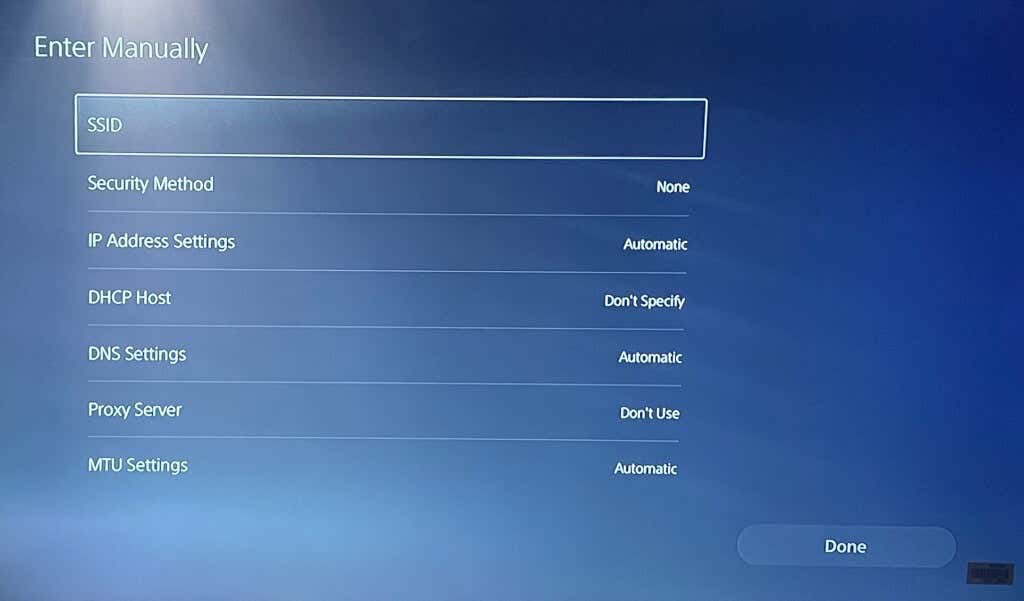
Fix 2: Forget and Reconnect WiFi Network
This refreshes saved network data.
Steps:
-
Go to Settings → Network → Settings
-
Select Set Up Internet Connection
-
Choose Set Up Manually
-
Select your WiFi network
-
Enter password again
This fixes many connection errors.
Fix 3: Switch WiFi Band (2.4GHz vs 5GHz)
PS5 supports both bands.
Which is better?
-
2.4GHz → Better range, slower speed
-
5GHz → Faster speed, shorter range
If PS5 WiFi not working on one band, try the other.
Fix 4: Change DNS Settings (Very Effective)
DNS issues are a common cause.
Recommended DNS:
-
Primary: 8.8.8.8
-
Secondary: 8.8.4.4
Steps:
-
Go to Network Settings
-
Choose Set Up Manually
-
Select WiFi
-
Choose Manual DNS
-
Enter DNS values
This improves speed and stability.
Fix 5: Update PS5 System Software
Outdated software can cause bugs.
Steps:
-
Go to Settings → System → System Software
-
Check for updates
-
Install latest update
Always keep PS5 updated.
Fix 6: Update Router Firmware
Router firmware updates improve compatibility.
Check router settings:
-
Login to router admin panel
-
Look for firmware update option
Updating router helps fix WiFi drops.
Fix 7: Reduce WiFi Interference
WiFi interference affects stability.
Tips:
-
Move router to open space
-
Avoid placing router near TV or microwave
-
Change WiFi channel in router settings
Fix 8: Check NAT Type
Bad NAT causes online issues.
NAT types:
-
Type 1 – Best
-
Type 2 – Good
-
Type 3 – Problematic
If NAT Type 3 appears, enable UPnP in router.
Fix 9: Use LAN Cable (Best Solution)
If WiFi keeps failing, use Ethernet.
Benefits:
-
Faster speed
-
Stable connection
-
No interference
For gaming, LAN is always better than WiFi.

How to Improve PS5 WiFi Speed
Even if WiFi works, speed may be slow.
Speed improvement tips:
-
Pause background downloads
-
Disconnect unused devices
-
Use 5GHz band
-
Change DNS
-
Upgrade router if very old
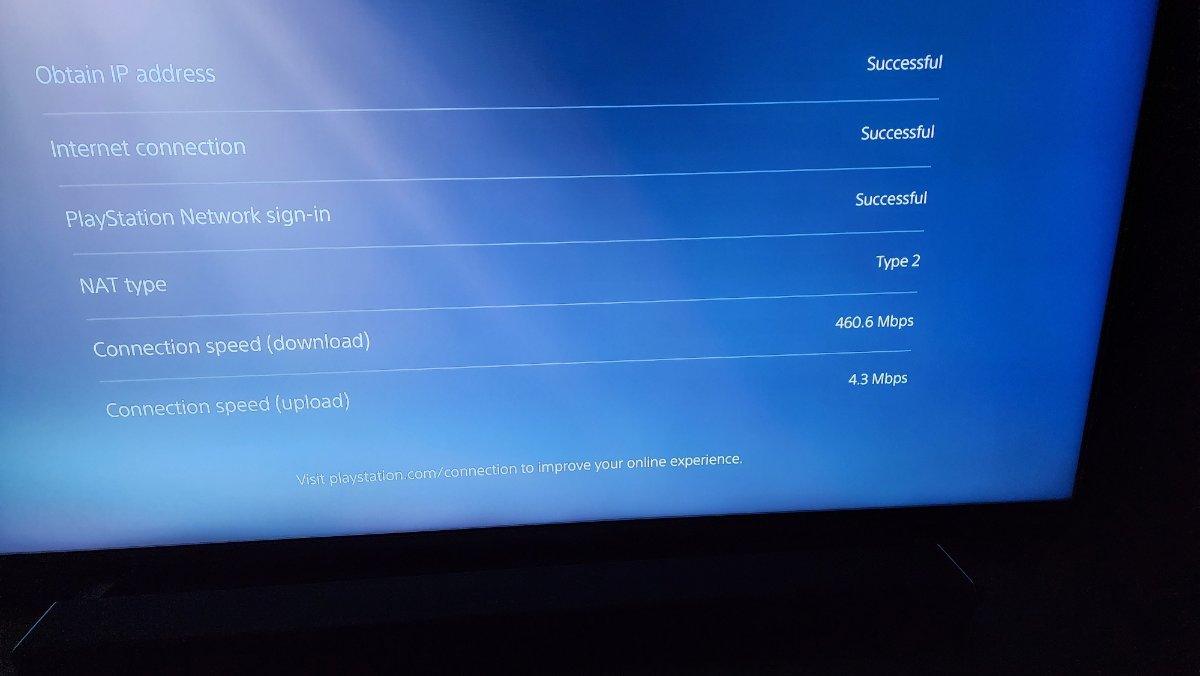
Test Internet Connection on PS5
Always test after changes.
Steps:
-
Go to Settings → Network → Test Internet Connection
-
Check:
-
Download speed
-
Upload speed
-
NAT type
-
This confirms if the fix worked.
Security Tips When Fixing PS5 WiFi
Stay safe while changing settings.
Follow these:
-
Use strong WiFi password
-
Avoid public WiFi for purchases
-
Do not share router login details
Common Mistakes to Avoid
Avoid these errors:
-
Changing too many settings at once
-
Using random DNS from internet
-
Ignoring router placement
-
Expecting perfect WiFi in crowded networks
PS5 WiFi Not Working in Hotel or Public WiFi
Public WiFi uses login pages.
Best solutions:
-
Phone hotspot
-
Travel router
-
Laptop sharing
Public WiFi is not ideal for gaming.
Frequently Asked Questions (FAQ)
Why is my PS5 WiFi not working but phone WiFi works?
PS5 handles networks differently. Router or DNS issues are common.
Is PS5 WiFi slower than LAN?
Yes. LAN is faster and more stable.
Does PS5 support 5GHz WiFi?
Yes, PS5 supports both 2.4GHz and 5GHz.
Should I reset PS5?
Only as a last option.
Final Thoughts – Fixing PS5 WiFi the Right Way
When PS5 WiFi not working, the problem is usually related to router settings, DNS issues, signal strength, or network congestion. By following the step-by-step fixes in this guide, you can solve almost all PS5 WiFi problems without technical expertise.
If WiFi issues continue, switching to a wired LAN connection is the most reliable solution for gaming. A stable internet connection ensures smooth gameplay, fast downloads, and uninterrupted PlayStation Network access.