If you want to play PlayStation 2 Games Using RetroArch, the most important requirement you must understand is PS2 BIOS. Many users install RetroArch on Android or iOS but get stuck with errors because they don’t know how to correctly set up the PS2 BIOS.
In simple terms, PS2 BIOS is the system software that allows PS2 emulation to work. Without it, RetroArch cannot properly start PS2 games, no matter how powerful your device is.
This detailed guide will explain how to setup PS2 BIOS in RetroArch on Android and iOS, step by step, in simple language, so that even beginners can follow it without confusion.
What You’ll Learn in This Guide
-
What PS2 BIOS is and why RetroArch needs it
-
How RetroArch handles PS2 emulation
-
Supported PS2 cores in RetroArch
-
Step-by-step PS2 BIOS setup on Android
-
Step-by-step PS2 BIOS setup on iOS
-
Common PS2 BIOS errors & fixes
-
Legal information you must know
-
Best practices for smooth PS2 emulation
What Is PS2 BIOS?
PS2 BIOS (Basic Input Output System) is the original firmware of the Sony PlayStation 2 console. It controls:
-
System boot process
-
Hardware initialization
-
Memory card handling
-
Game loading
In emulation, PS2 BIOS acts as the foundation that tells the emulator how a real PS2 behaves.
Without PS2 BIOS:
-
PS2 core will fail to load
-
Games will not start
-
RetroArch will show BIOS errors
That’s why PS2 BIOS is mandatory for accurate PS2 emulation.
What Is RetroArch?
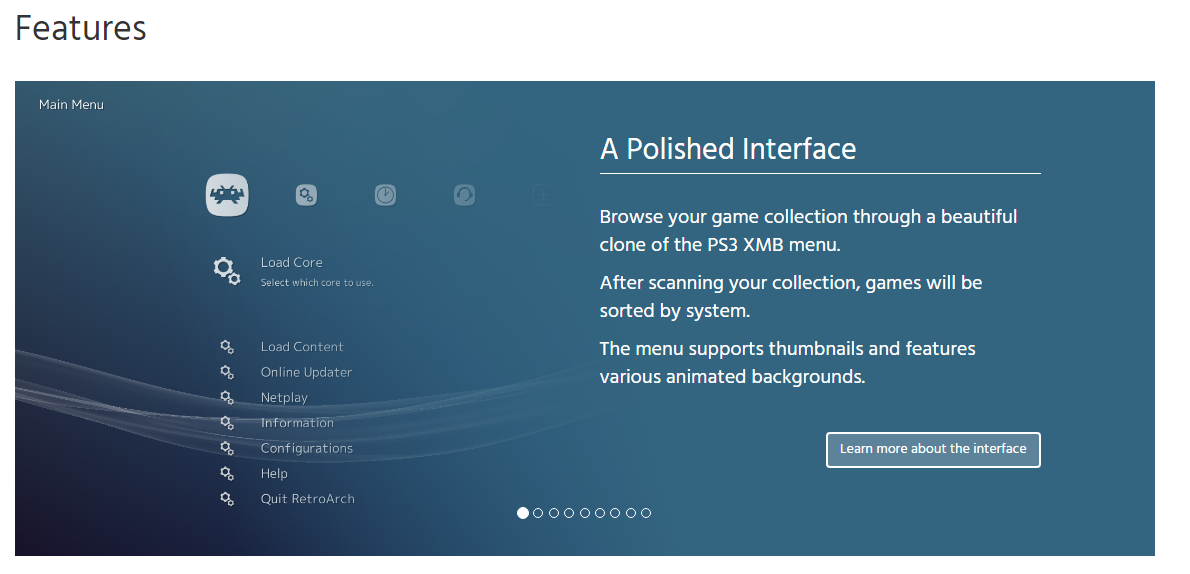
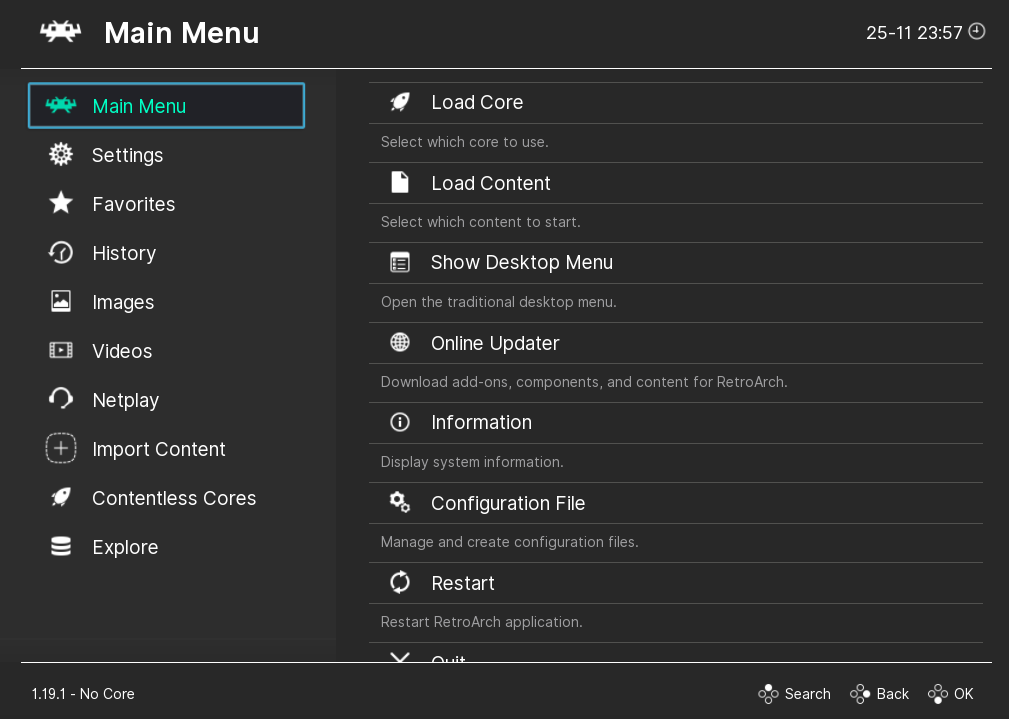
RetroArch is a multi-system emulator frontend that supports many consoles through cores. Instead of installing separate emulators, RetroArch allows you to:
-
Run multiple systems in one app
-
Use a unified interface
-
Share settings across cores
For PS2 emulation, RetroArch depends on external PS2 cores, which require PS2 BIOS to function.
How RetroArch Runs PS2 Games
RetroArch itself is not a PS2 emulator. It uses PS2 emulator cores, such as:
-
LRPS2 (Play!) – limited compatibility
-
PCSX2-based cores (experimental on mobile)
These cores replicate PS2 hardware behavior and rely on PS2 BIOS to boot and run games correctly.
Important Note About PS2 Emulation in RetroArch
Before proceeding, you must understand:
-
PS2 emulation in RetroArch on mobile is experimental
-
Not all games will work
-
Performance depends heavily on your device
For best results:
-
High-end Android devices perform better
-
iOS has more limitations due to system restrictions
PS2 BIOS Files Explained
A proper PS2 BIOS setup usually includes multiple files, such as:
-
.bin(main BIOS file) -
.rom -
.nvm -
.mec
All these files must remain together in one folder.
Do not rename, delete, or modify them.
Is PS2 BIOS Legal?
This is very important for your website’s trust and Google indexing.
Legal Facts:
-
PS2 BIOS is copyrighted by Sony
-
Downloading BIOS from the internet is illegal
-
Sharing BIOS files is not allowed
Legal Usage:
✔ Dump PS2 BIOS from your own PlayStation 2 console
✔ Use it for personal emulation only
This article is educational only and does not provide PS2 BIOS downloads.
How to Setup PS2 BIOS in RetroArch on Android
Let’s start with Android, where RetroArch is more flexible.
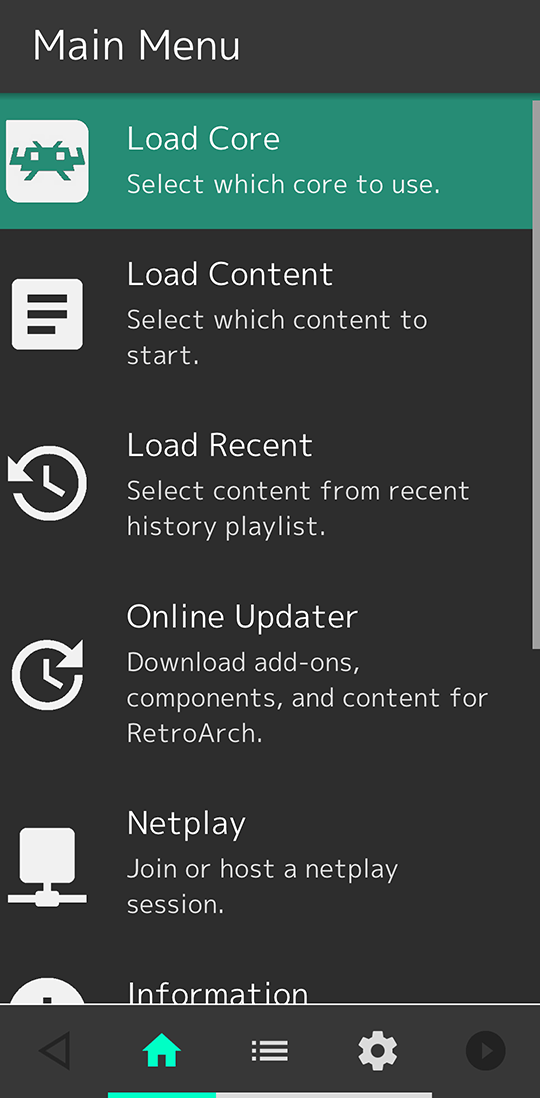
Step 1: Install RetroArch (Android)
-
Download RetroArch from Google Play Store or official site
-
Open the app and allow permissions

Step 2: Prepare PS2 BIOS Folder
-
Create a folder on your device:
-
Copy all PS2 BIOS files into this folder
✔ Keep all files together
✔ Do not rename files
Step 3: Configure BIOS Directory in RetroArch
-
Open RetroArch → Settings
-
Go to Directory
-
Set System/BIOS Directory to:
-
Save settings
This tells RetroArch where to look for PS2 BIOS.
Step 4: Download PS2 Core (If Available)
-
Go to Load Core
-
Select Download a Core
-
Look for PS2-related cores (availability may vary)
Not all builds show PS2 cores on Android.
Step 5: Verify PS2 BIOS in RetroArch
-
Go to Settings → Core → Manage Cores
-
Select PS2 core
-
Check BIOS status
If BIOS is detected correctly, no error will appear.
Also Read :- PS2 BIOS Download
How to Setup PS2 BIOS in RetroArch on iOS
iOS setup is more restricted due to Apple limitations.
iOS Limitations You Must Know
-
Limited file system access
-
Core availability depends on build
-
Performance is lower compared to Android
Still, setup steps are similar.
Step 1: Install RetroArch (iOS)
RetroArch is usually installed via:
-
AltStore
-
Side-loading methods
(App Store version may have limitations.)
Step 2: Locate RetroArch System Folder (iOS)
-
Open Files app
-
Navigate to:
-
Create ps2 folder
-
Paste PS2 BIOS files inside
Step 3: Set BIOS Directory
In RetroArch:
-
Settings → Directory
-
Set System/BIOS directory correctly
Ensure it points to the main system folder.
Step 4: Core Selection on iOS
PS2 cores on iOS are:
-
Very limited
-
Experimental
Not all PS2 games will load.
Common PS2 BIOS Errors in RetroArch (And Fixes)
“Missing PS2 BIOS”
Cause: Wrong folder or missing files
Fix:
-
Check folder name
-
Verify BIOS directory path
Black Screen on Game Load
Cause: Unsupported core or settings
Fix:
-
Try different renderer
-
Check core compatibility
RetroArch Crashes
Cause: Device hardware limitation
Fix:
-
Close background apps
-
Use lighter settings
Best Settings for PS2 Emulation in RetroArch
Recommended:
-
Use Vulkan renderer (if available)
-
Keep resolution low
-
Disable heavy shaders
-
Use external controller
These settings improve stability.
RetroArch PS2 vs Standalone Emulators
| Feature | RetroArch | Standalone Emulator |
|---|---|---|
| Ease of use | Medium | Easy |
| PS2 compatibility | Limited | Better |
| Customization | High | Medium |
| Mobile performance | Lower | Higher |
For beginners, standalone PS2 emulators may work better, but RetroArch is powerful for advanced users.
Frequently Asked Questions (FAQ)
Is PS2 BIOS required for RetroArch?
Yes. PS2 BIOS is mandatory for PS2 cores.
Can RetroArch run PS2 games on low-end phones?
No. PS2 emulation requires powerful hardware.
Is PS2 BIOS the same for all games?
Yes. One BIOS works for all PS2 games.
Android or iOS – which is better for PS2 emulation?
Android performs better and offers more flexibility.
Final Words
Setting up PS2 BIOS in RetroArch is the most important step for PS2 emulation on Android and iOS. Without proper BIOS placement and configuration, RetroArch cannot run PS2 games correctly.
This guide was written to give you clear, legal, and beginner-friendly instructions, without misleading downloads or unsafe advice. If you want stable PS2 emulation, always:
-
Use legally obtained PS2 BIOS
-
Follow correct folder structure
-
Use compatible hardware
For more PS2 BIOS, PCSX2, and emulation guides, keep visiting PCSX2GuideHub.com.